

Troubleshooting 101, Revisited
Three steps to help solve most tech problems and a reflection on our complex technological world.


Meanderings
The other day, my kid said to me, as if this was the most obvious thing ever, and of course, I didn’t know it - “Mom, you should restart the device.” Does he not know that I was a computer coach when I lived in entrepreneurial land? Apparently not. So, I thought I’d share this with all of you. So, I can feed my ego that I said it before he did.
I wrote this back in 2019. You can read the original here. I will update the narrative a little, but the steps remain the same.
Back in 2000, I was thinking about all the computer programs I used to get my job done. At the time, I worked at a hotel, golf course, and resort. It was an all-in-one place. I served, ultimately, as the Assistant Manager. Which basically meant I was the jill-of-all-trades for all the hotel and restaurant staff. Save knowing how to be a server or bartender; I learned that on the job when staff called out sick.
Which was often.
Because we paid what we were allowed to pay our staff terrible wages, which was a measly $2.30/hour plus tips. Now, the actual minimum wage was closer to $5/hour. We didn’t bring in enough guests, and our servers didn’t get enough money, so we’d have to fill in the gap between the actual minimum wage and the server minimum wage. But, between the crap pay and toxic work environment, it’s no wonder they called out.
Anyway, back then, I used a database for the hotel, a database for the accounting system, and a database/Point of Sale (POS) system for the restaurant. The latter two talked to each other. The former talked to none. So, we’d have to enter hotel data into the accounting system manually. I used Microsoft Word and Microsoft Excel. We also probably used Internet Explorer (was this a pre-antitrust case against Microsoft?). I had less than 10 programs I used for my job.
I can’t even tell you how many programs I use for my work now! Between apps, stand-alone programs, all-of-the-social-media-and-messaging, and all the web browser options, it’s over 20 for each job I’ve had since at least 2010.
We live in a highly complex tech world, and it doesn’t get any easier. Recently, I lamented on the Great Technological Regression (a term I’m coining). We have all this shiny technology, but every time we take a step forward, it’s like taking two steps backward. At the time of this writing, on February 5th, my tech has been whack for 6 weeks, and I can’t even blame Mercury!
Regardless of the tech complexities, we can land on three solid steps that will solve most of your tech problems. So, let’s look at them again.
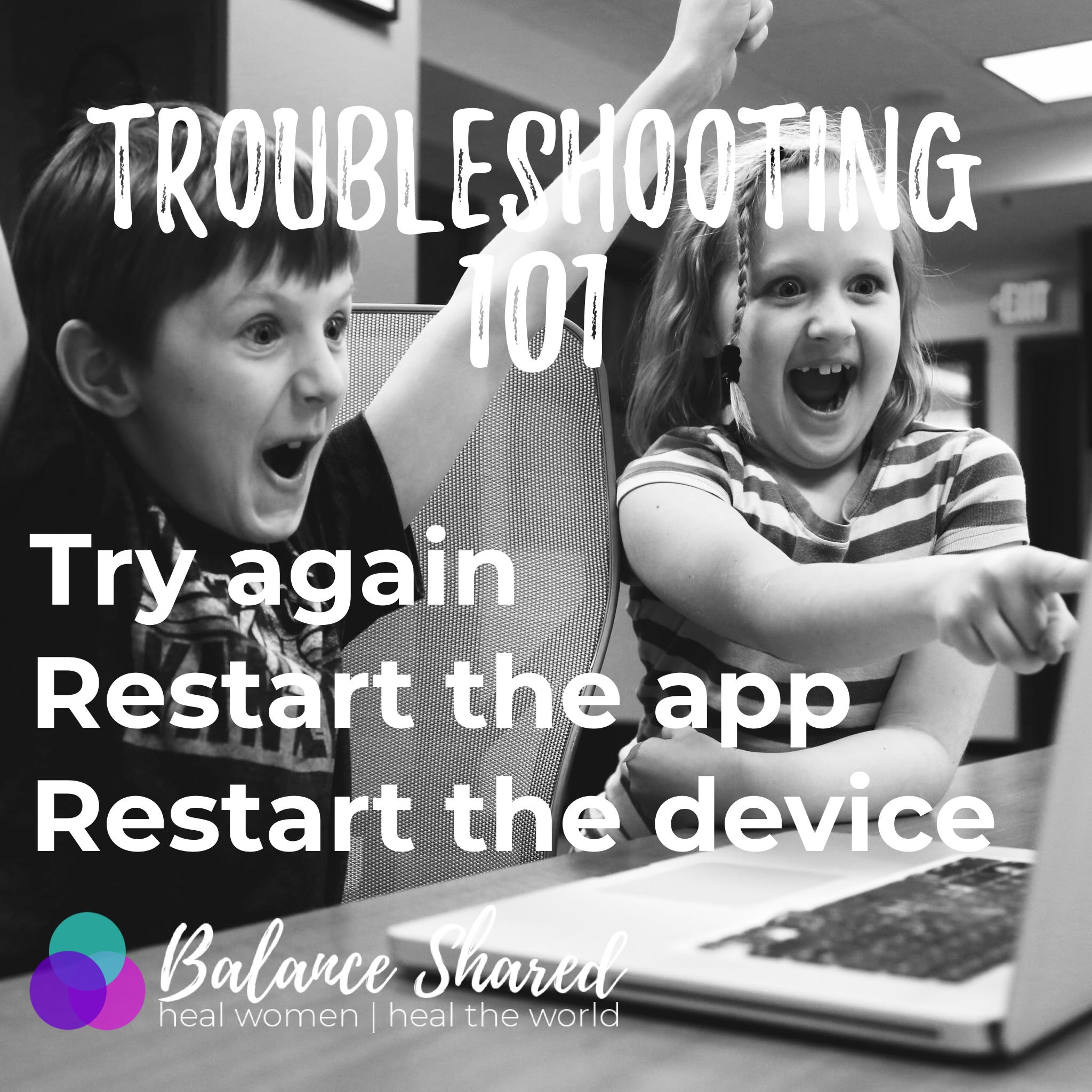
1. Try again
The first thing you want to do is eliminate any user error. Generally, computers will do EXACTLY what you tell them to. So, if you find you aren’t getting the results you want, it probably means that you told the computer to do something wrong.
For example, I was highlighting multiple email messages for quick deletion. I routinely go through my many emails and select many to delete or archive all at once. Suddenly, when I moved my cursor to the email list, it went nuts! It was scrolling up and down, and it deselected everything I had selected! I couldn’t figure it out. So, I stopped and redid it, and the problem persisted. So, I tried again, but I paid closer attention to my hands on my keyboard. Instead of holding ONLY shift or command, I accidentally hit the spacebar. Therefore, the computer was doing EXACTLY what it was told. I was giving it the wrong command.
So, if you encounter a problem, try again. If you are CERTAIN that you told the computer the exact right thing, but it’s still not responding correctly, then proceed to the next step.
2. Restart the app
Here is where the 1s and 0s seem to start getting misaligned. (That’s kind of a computer joke. Remember, bits? You can break down all these pretty things we see on screen to code, which is basically a 1 or a 0 giving a command… I digress…) Sometimes, programs freeze. They don’t respond the way you want them to. It feels like they are hanging up. When this happens, restart the application or program. Use your computer or device’s “force quit” function if the normal quitting isn’t working. If that still doesn’t work, you may need to restart your device.
3. Restart the device
Your device could be your computer, your phone, your smart TV, modem, router, DVD, DVR, home security system, digital camera, and so much more. If you can, go through the proper shutdown procedure. If you must do a force restart, do so according to your device.
Here are some reasons you might restart your device:
If your device is running slow
If your device is acting “weird”
Unexpected system freeze-ups
Driver or hardware error
Lagging internet speeds
Connecting to the internet
After a software or patch update
After any software or hardware installation
What does restarting your device do? It makes the device run through its original programming, which is designed to turn things off and on and check for errors. Newer operating systems sometimes even have checks for malware and other nasty things.
If you find yourself having to restart more frequently than usual, it might be time for some more intensive maintenance. Be sure to have your computer checked out by a reputable service provider.
Final Reflections
We live in an intensely complicated world. And our technology will make us want to throw it out the window, maybe hourly. And, in that complexity, we are tied to it. So, hopefully, these three things will help you when you encounter a problem - which can happen regardless of whether Mercury is in retrograde.
Resources
The original article I wrote, “Troubleshooting 101.” https://michellelasley.com/2019/02/troubleshooting-101/
Make Tech Easier, “What Happens When You Restart Your Computer”, https://www.maketecheasier.com/what-happens-restart-computer/
Lifewire, “Why Does Restarting Seem to Fix Most Computer Problems?”, https://www.lifewire.com/why-does-restarting-seem-to-fix-most-computer-problems-2624569
University of Florida Clas IT Connections, “Why You Should Restart Your Computer”, https://it.clas.ufl.edu/article/why-you-should-restart-your-computer/